Reading lists: collect, rank and share novels
2 min read
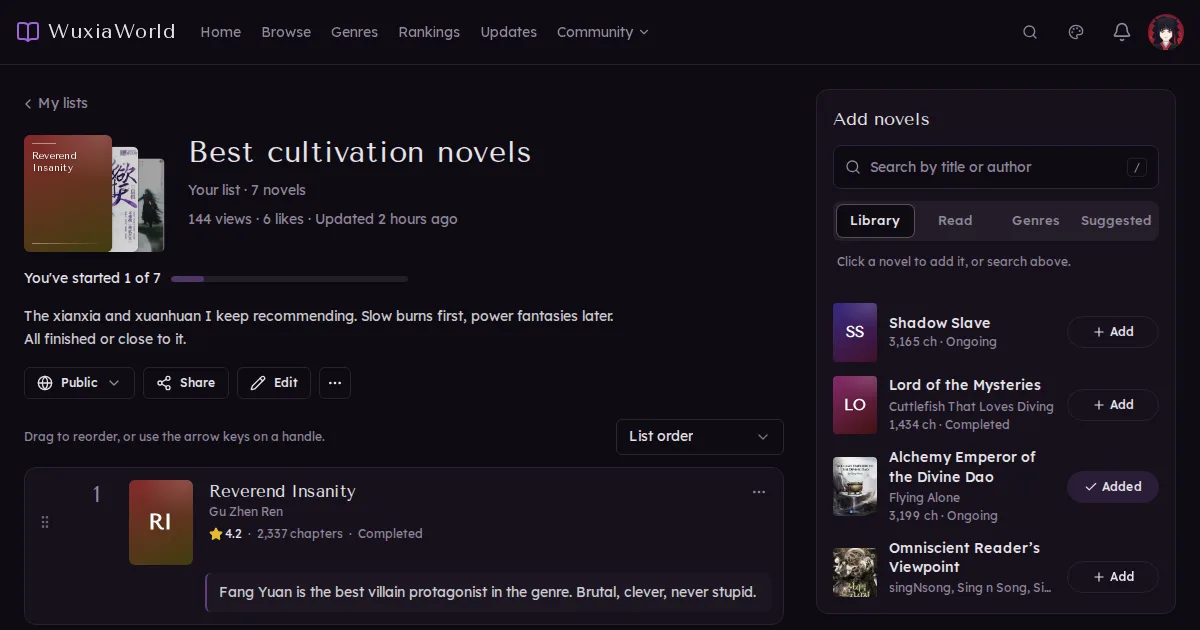
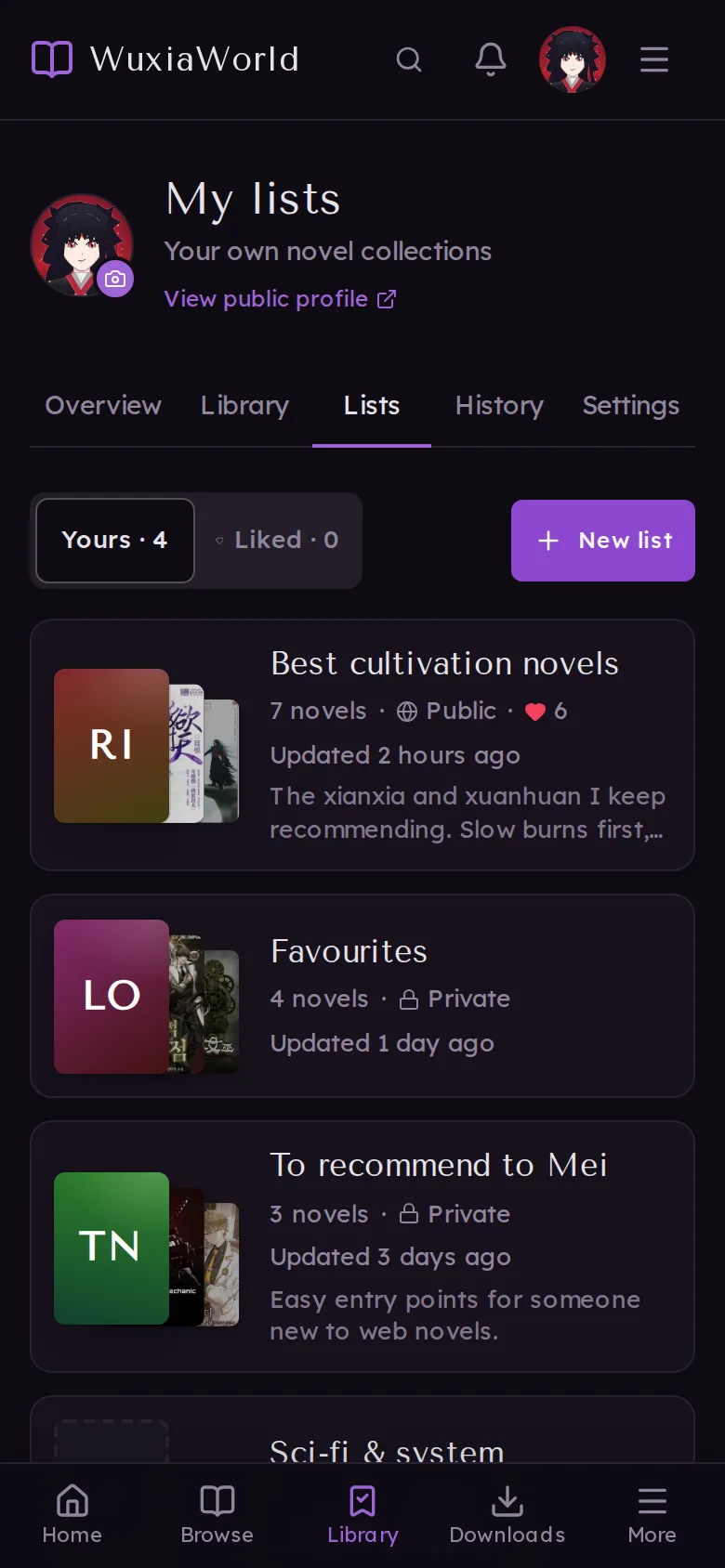
Your library keeps track of what you're reading. Lists are for everything else: the best of a genre, your all-time favourites, what you'd hand a friend who's new to web novels. Make as many as you like.
Make a list
Open My lists from your account menu (or the Lists tab next to Library), tap New list and give it a name. You can start from one of the suggested names too. A description is optional, and a list can be numbered if the order matters.
Lists are private until you make them public.
Add novels without leaving the page
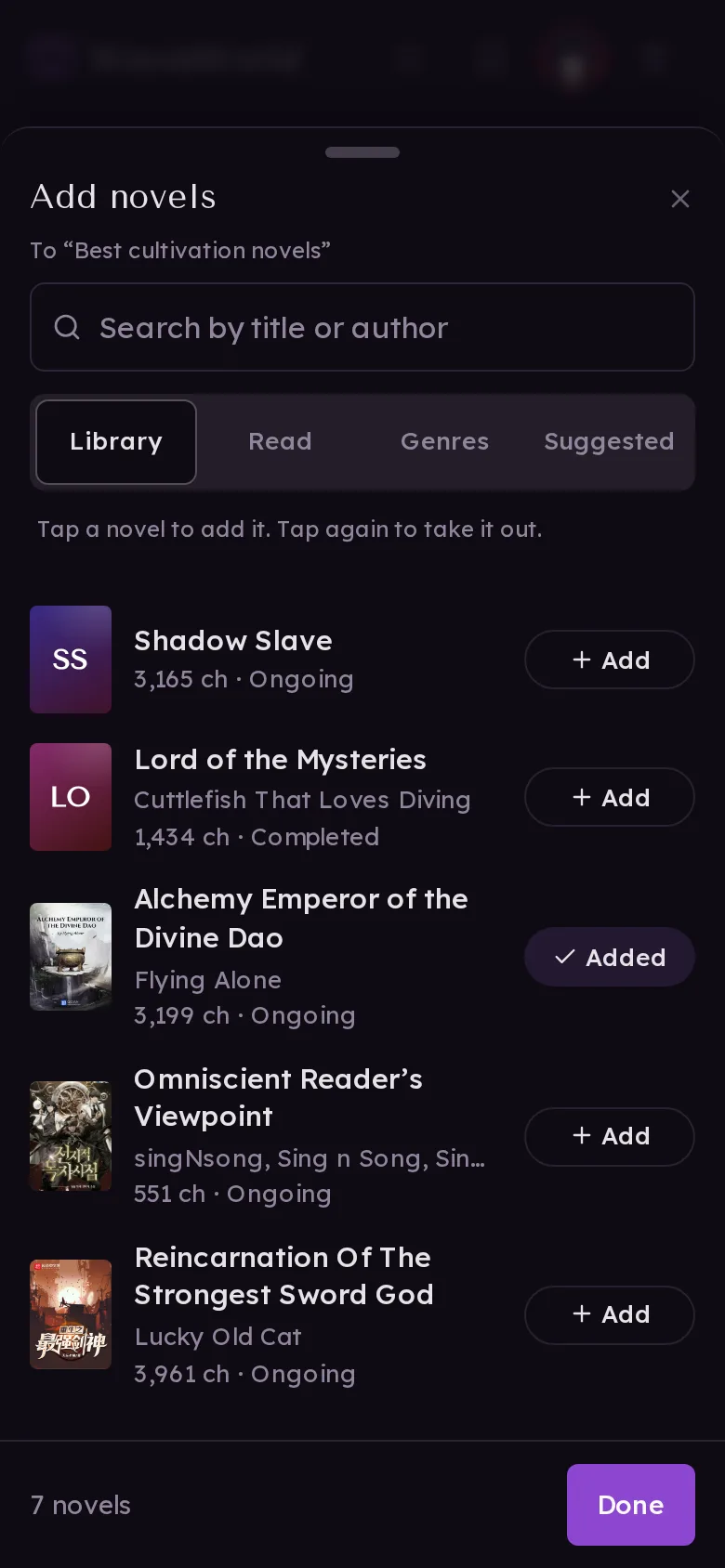
Every list has its own Add novels panel: search by title or author, or pick from your Library, what you've Read recently, the most-read novels of a Genre, or Suggested novels that are like the ones already in the list. Each one is a single tap to add, and a tap again to take it back out.
On a computer the panel sits beside your list, and pressing Enter adds the top search result, so you can type one title after another. On a phone it opens from the Add novels button and stays open while you add as many as you want.
You can also add a novel from its own page: Add to list sits next to Add to Library, and shows which of your lists it's already in.
Notes and order
Write a short note on any novel in a list (why it's there, who it's for, what to expect). Drag novels to reorder them, or use Move up, Move down, Move to top and Move to bottom from a novel's menu. Removed something by mistake? Tap Undo.
Share it
When a list is ready, switch it to Public and tap Share. Anyone with the link can read it, including your notes, and it shows on your profile. You'll see how many people viewed and liked it.
Like lists, and find new ones
Liked someone's list? Tap Like to keep it under My lists › Liked.
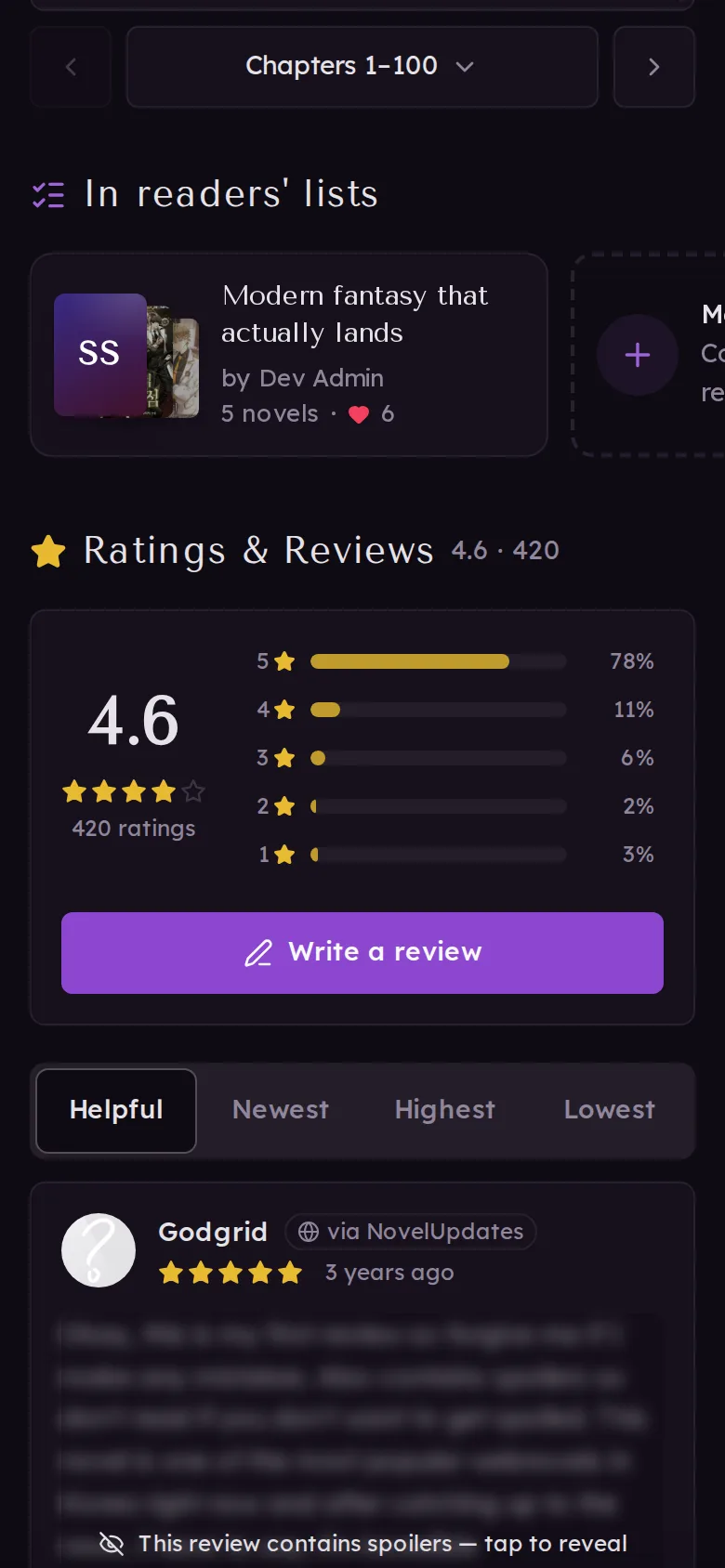
Novel pages now have an In readers' lists section near the bottom: lists from other readers that include that novel. It's a good way to find what to read next from people with the same taste.
Your progress on any list
When you open a list, you'll see how many of its novels you've started, and each novel you've read shows Continue · ch. N so you can pick up where you stopped. On other readers' lists, one tap adds a novel to your library as Plan to read.
Let me know in the comments what you'd like lists to do next.
Posts